Game won't detect your joystick or wheel? The input bridge turns it into an Xbox controller
Your wheel, joystick or flight stick reports itself to Windows as a DirectInput device – and games that only read the Xbox controller (XInput) simply ignore it. The Lumora input bridge creates a virtual Xbox 360 controller from your device that Windows and every XInput game recognise like a real Xbox pad.
⬇ Download Lumora for freeFor Windows 10 & 11 · no registration · open source (AGPL v3)
Why your device is "not detected"
Many modern Windows games – especially from the Microsoft Store and Game Pass – only speak XInput, the Xbox controller protocol. Joysticks, flight sticks, older wheels and pedals, however, report themselves as classic DirectInput devices. The game simply ignores them – not because the device is broken, but because the game never asks for them.
The input bridge translates in between: it reads your device and feeds the inputs into a virtual Xbox controller that behaves, to Windows and every game, like a real Xbox gamepad.
Who this is for
- Sim racers with a DirectInput wheel – an older or budget wheel (Logitech Driving Force, Thrustmaster & co.) reports as DirectInput; games that only read XInput don't see it. With the bridge you steer anyway. (Tested on Steam with Assetto Corsa and BeamNG.drive, wheel + separate pedals.)
- Microsoft Store and Game Pass titles that only speak XInput – there even Steam Input, which otherwise maps DirectInput devices, doesn't apply. The bridge instead works system-wide through a real virtual Xbox controller, independent of Steam. (It provides a standard-compliant Xbox pad; whether a given title plays along is up to the game.)
- Sim-rig combos – merge wheel, separate pedals, handbrake and shifter into one virtual pad, even when the parts come from different manufacturers.
- Accessibility – if you can't press an analog trigger, map full throttle to a single button; conversely an axis can trigger a button. Inputs bend freely to what your hand allows.
- Fight sticks, arcade sticks, exotic USB controllers – anything Windows sees as an input device becomes an Xbox gamepad that every game understands.
Setup: click, move, done
- Pick your device – Lumora lists all connected joysticks, wheels and gamepads.
- Map it visually – click the button or axis on the pictured Xbox controller, then move the real lever or press the real button. Auto-calibration captures rest position and travel on its own – inverted axes and combined pedals included.
- Save a profile – linkable per game: when the game starts, the bridge switches on automatically (only if the device is connected too) and off again afterwards.
- Axis → trigger: map a pedal or throttle onto the analog LT/RT – real analog input instead of on/off.
- Button → axis: conversely a button can drive an axis to full deflection.
- Per-game profiles with automatic activation on game start.
- Everything local: no cloud, no account, no telemetry.
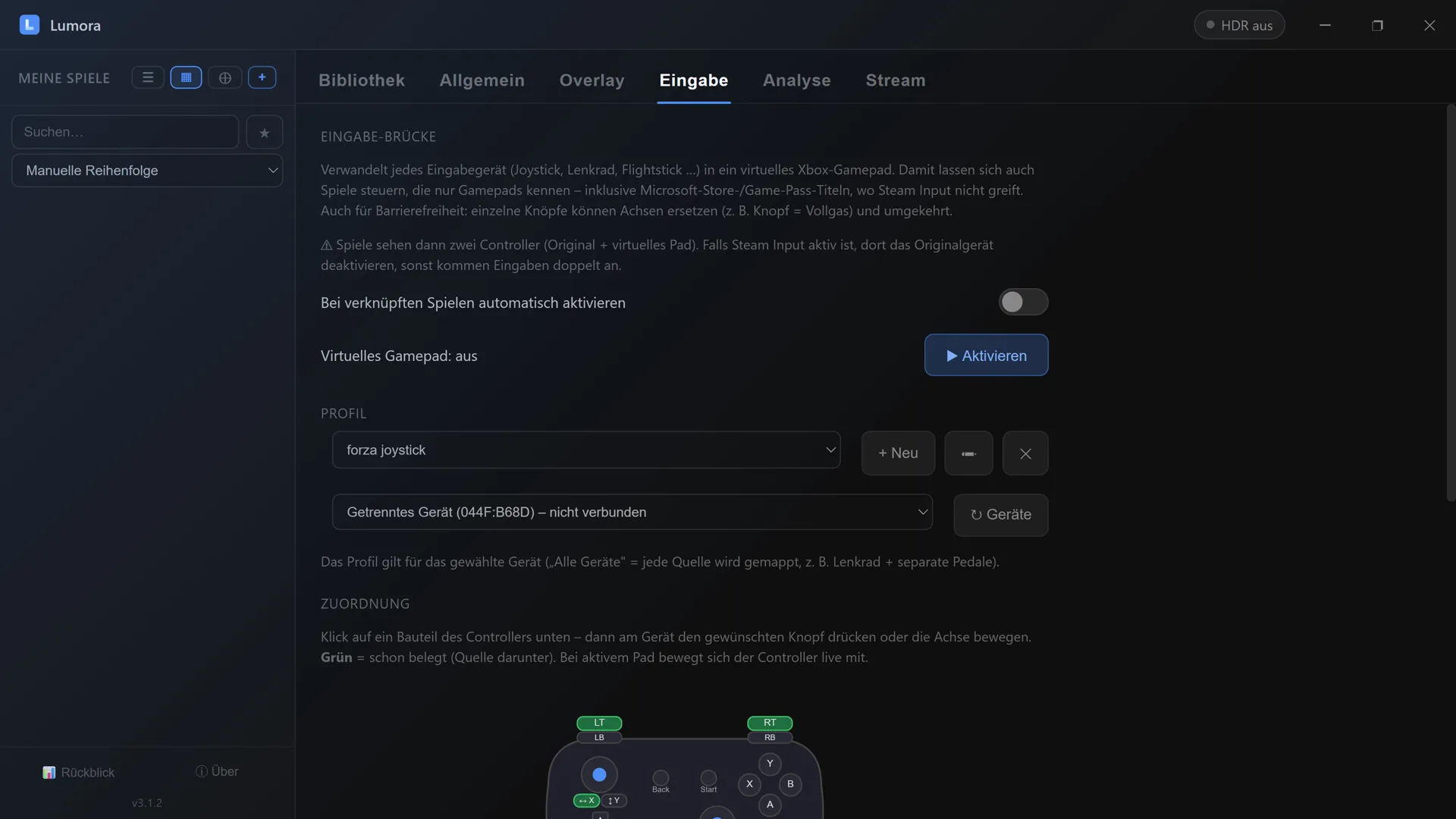
Pick a profile, activate the virtual pad – then map it on the pictured controller. Green marks what is already assigned.
The difference from x360ce
The well-known x360ce works with DLL files copied into the game folder – which is exactly what's not possible with Microsoft Store and Game Pass games, whose folders are sealed. The input bridge instead relies on the signed open-source driver ViGEmBus: the virtual controller exists system-wide, for every game, without touching a single file in the game folder.
What gets installed – and what doesn't
For the virtual controller, Windows needs the ViGEmBus driver once (signed, open source, by Nefarius). Lumora downloads it from the official source only after your click, verifies the signature and installs it – removable any time via "Apps & Features". Nothing happens automatically in the background, and as with everything in Lumora, the full source code is public on GitHub.
Frequently asked questions
Why doesn't my Microsoft Store game detect my wheel or joystick?
Many Microsoft Store and Game Pass games only accept XInput – the Xbox controller protocol. Older wheels, joysticks and flight sticks report themselves as DirectInput devices and stay invisible. The Lumora input bridge creates a virtual Xbox 360 controller from your device that every XInput game recognises instantly.
How do I set up the mapping?
Visually: in Lumora you click the button or axis on the pictured Xbox controller, then move the real lever or press the real button – done. Axes are calibrated automatically (rest position and travel); inverted axes and combined pedals work too.
Can I map buttons onto axes – for example throttle on RT?
Yes, both ways: a real axis can be mapped onto the analog triggers LT/RT (or stick axes), and a real button can drive an axis to full deflection. That turns a pedal or throttle lever into clean analog input.
Is this an alternative to x360ce?
Yes, with a different approach: instead of copying DLL files into game folders, the input bridge creates a system-wide virtual Xbox controller via the signed open-source driver ViGEmBus. That also works with Microsoft Store and Game Pass games, where the DLL trick isn't possible.
Is force feedback passed back to my wheel?
No, not currently: the bridge sends your inputs to the game, but vibration and force feedback effects are not passed back to the device. For force-feedback wheels the manufacturer's native driver is the better choice if the game supports it.
What gets installed for this?
A one-time install of the ViGEmBus driver – a signed open-source driver for virtual gamepads. Lumora downloads it from the official source on your click, verifies the signature and installs it; it's removable any time via Apps & Features. None of this happens automatically in the background.
More from Lumora
Control the whole launcher with a gamepad →
Share gameplay in 4K with friends →
Show FPS & hardware stats in-game →